Privacy • Accessibility • Contact • Sitemap ©
1995 - 2024, TechSmith Corporation, All Rights Reserved


Complicated concepts need more than screen capture
You have to explain processes, often in long-form guides and tutorials that require a lot of context. You’ve tried to use the Snipping Tool but have found some limitations.
Snagit vs. the Snipping Tool: Which one is right for technical documentation?
The Snipping Tool is quick and easy but lacks the robust features technical writers need to capture and explain complex processes.
SNAGIT VS THE ALTERNATIVES FOR TECHNICAL WRITERS
Snagit is more than just a screenshot tool

Advanced Features
Sometimes, just a screenshot isn’t going to cut it. A concept is better explained by manipulating elements, adding notes, combining screenshots, or with a quick video!

You can’t beat a free tool. Or can you? In an ideal world, the right screen capture and recording software would enable technical writers to document effectively and efficiently.

Custom Settings
Technical writers usually have to adhere to different brand or documentation guidelines at a time. They need tools that allow for multiple presets to toggle between quickly.

Screen Capture History
The right software can help you document
and capture once then re-use and update over and over creating efficiencies in your process.
AFTER SNAGIT
Why technical writers choose Snagit
The Snipping tool is quick, but technical writers need something with robust features that is easy to use. Here are some favorite capabilities that won over our technical writer customers.

Simplify images
Explaining a concept is easier when it’s visual. Easily focus viewers’ attention on important areas in a capture by simplifying or editing text within images, or moving UI elements.

A single library
Snagit stores, organizes, and syncs your captures across devices so they are accessible to you and your teams.
Customized presets & keys
Technical writers can save customized styles to Quick Styles to refer back or adhere to brand guidelines. Keyboard shortcuts are also customizable for easy access to Snagit when you need it.

Why technical writers
trust Snagit for the job
Get Snagit Today
With thousands of amazing uses, Snagit is the only screen capture and recording software you’ll ever need.
Subscription
$39.00
Billed Yearly
One non-transferrable subscription to Snagit with access to Screencast, always updated.
Simple tools can’t help explain complex concepts
Explain Difficult Concepts
Documenting processes, providing feedback, or explaining concepts require a lot of context and visual aid, especially to audiences who you can’t see face-to-face.

You have to explain processes that require a lot of context and visual aid. You’ve tried doing this a few ways but found limitations.
No Historical Information
Most tools don’t offer a central repository that you can refer back to so you don’t have to re-explain concepts you already have in the past.
Limiting Tools
There are many tools on the market to assist but they’re either limiting in capabilities or overly complex to get technical documentation jobs completed.
BEFORE SNAGIT
What our customers say about Snagit
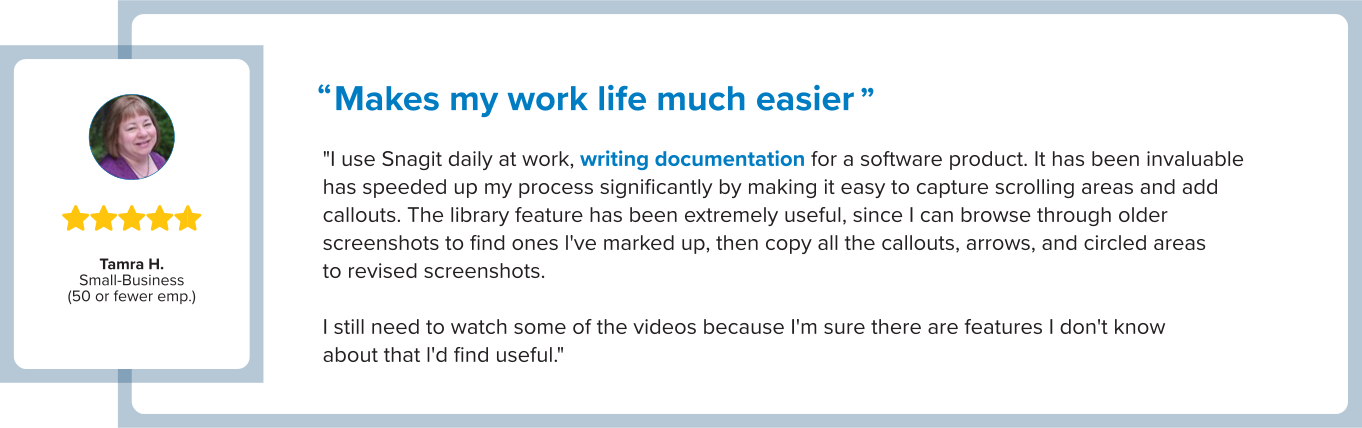

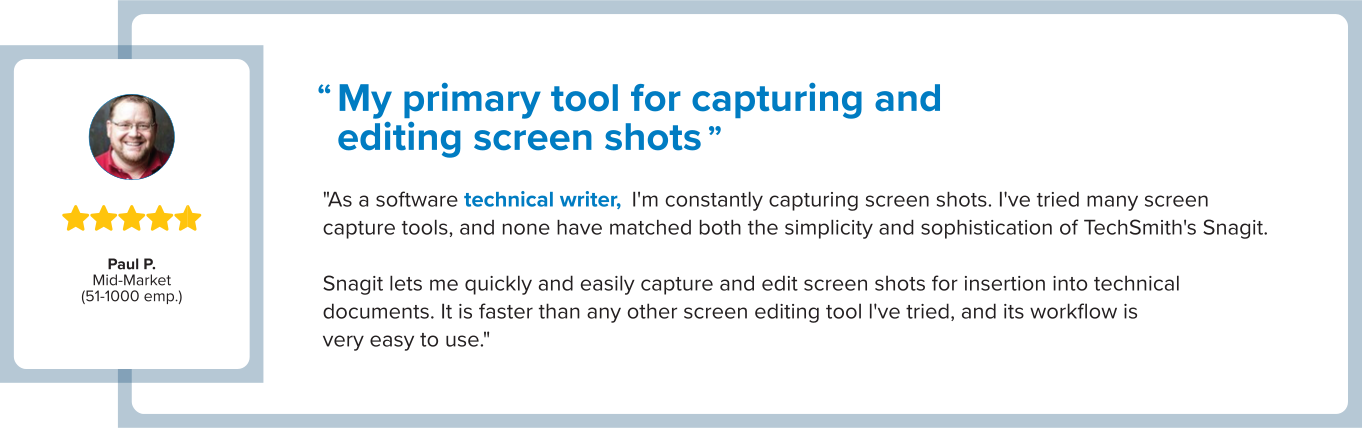
Over 10 million people have used Snagit for technical documentation.
What technical writers say about Snagit
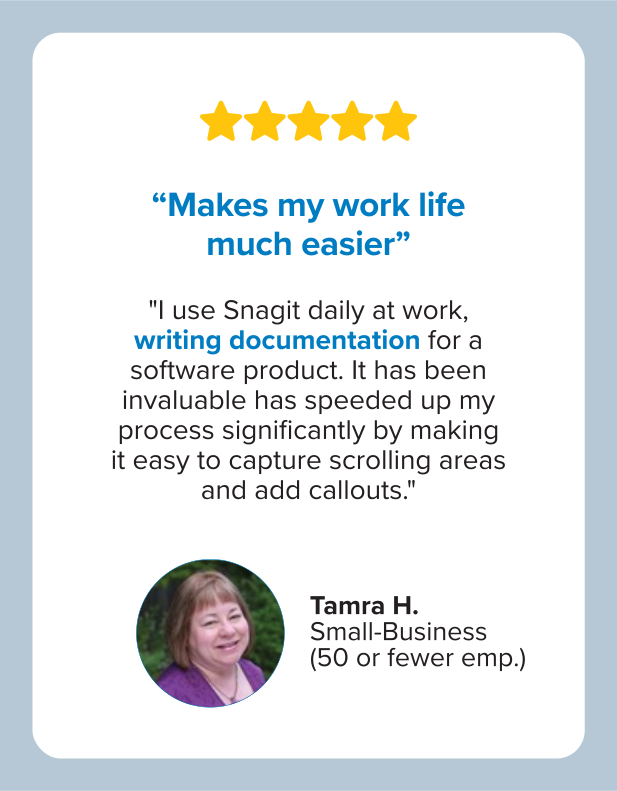
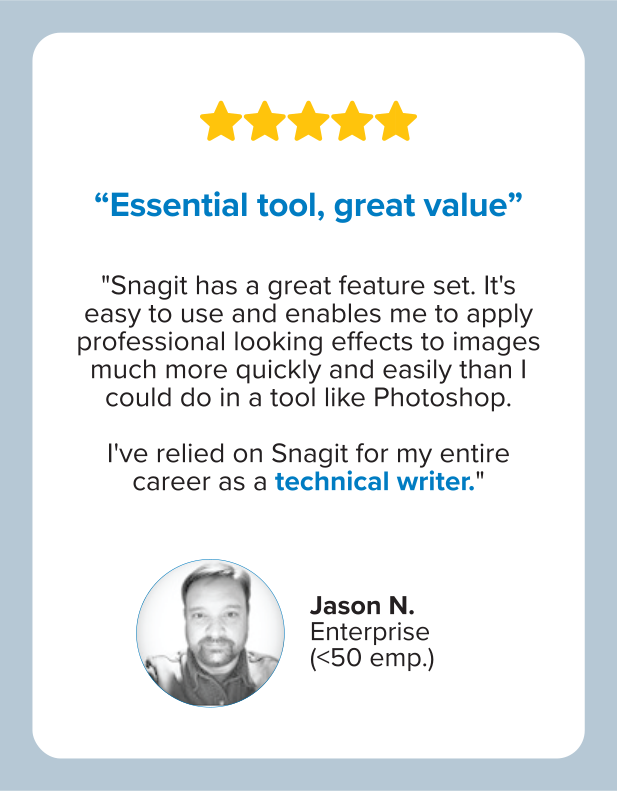


Why technical writers choose Snagit
The Snipping tool is quick, but technical writers need something with robust features that is easy to use. Here are some favorite capabilities that won over our technical writer customers.
Simplify images
Explaining a concept is easier when it’s visual. Easily focus viewers’ attention on important areas in a capture by simplifying or editing text within images, or moving UI elements.
A single library
Snagit stores, organizes, and syncs your captures across devices so they are accessible to you and your teams.
Customized presets & keys
Technical writers can save customized styles to Quick Styles to refer back or adhere to brand guidelines. Keyboard shortcuts are also customizable for easy access to Snagit when you need it.

Why technical writers
trust Snagit for the job
FAQ
Frequently Asked Questions
64 bit Windows only
Snagit Printer not available on Windows on ARM
.NET 4.7.2 or later
WebView2 Runtime (included with installer)
Intel i3 CPU / AMD equivalent (Intel i5 CPU 6th gen / AMD equivalent or higher required for video capture)
4 GB of RAM
1.6 GB of hard-disk space for program installation
macOS System Requirements
macOS Monterey (12), or later
macOS Ventura (13) or later is required for:
Video recording toolbars and controls to he hidden in final recordings
Camera swap